InsureBook Developer Guide
Acknowledgements
Our project is based on AddressBook Level-3
External libraries used: JavaFX for our UI, Jackson for data management and storage, JUnit5 for testing.
Setting up, getting started
Refer to the guide Setting up and getting started.
Design
Architecture
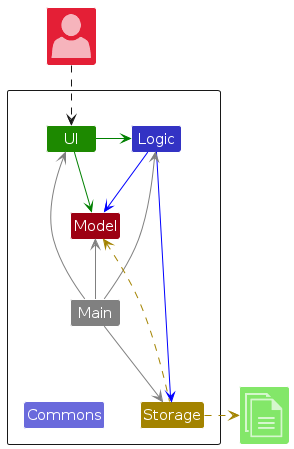
The Architecture Diagram given above explains the high-level design of the App.
Given below is a quick overview of main components and how they interact with each other.
Main components of the architecture
Main (consisting of classes Main and MainApp) is in charge of the app launch and shut down.
- At app launch, it initializes the other components in the correct sequence, and connects them up with each other.
- At shut down, it shuts down the other components and invokes cleanup methods where necessary.
The bulk of the app's work is done by the following four components:
UI: The UI of the App.Logic: The command executor.Model: Holds the data of the App in memory.Storage: Reads data from, and writes data to, the hard disk.
Commons represents a collection of classes used by multiple other components.
How the architecture components interact with each other
The Sequence Diagram below shows how the components interact with each other for the scenario where the user issues the command delete 1.
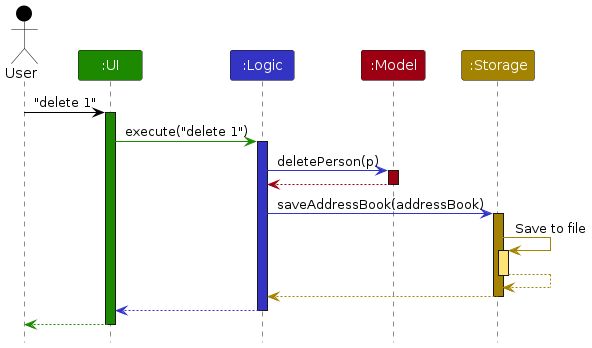
Each of the four main components (also shown in the diagram above),
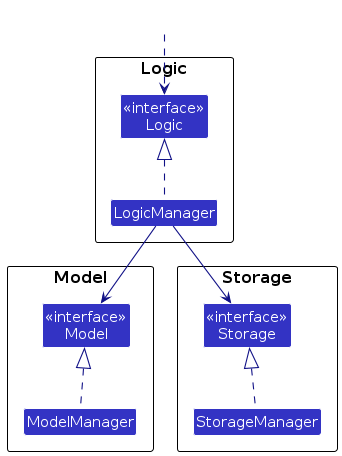
- defines its API in an
interfacewith the same name as the Component. - implements its functionality using a concrete
{Component Name}Managerclass (which follows the corresponding APIinterfacementioned in the previous point.
For example, the Logic component defines its API in the Logic.java interface and implements its functionality using the LogicManager.java class which follows the Logic interface. Other components interact with a given component through its interface rather than the concrete class (reason: to prevent outside component's being coupled to the implementation of a component), as illustrated in the (partial) class diagram below.
The sections below give more details of each component.
UI component
The API of this component is specified in Ui.java
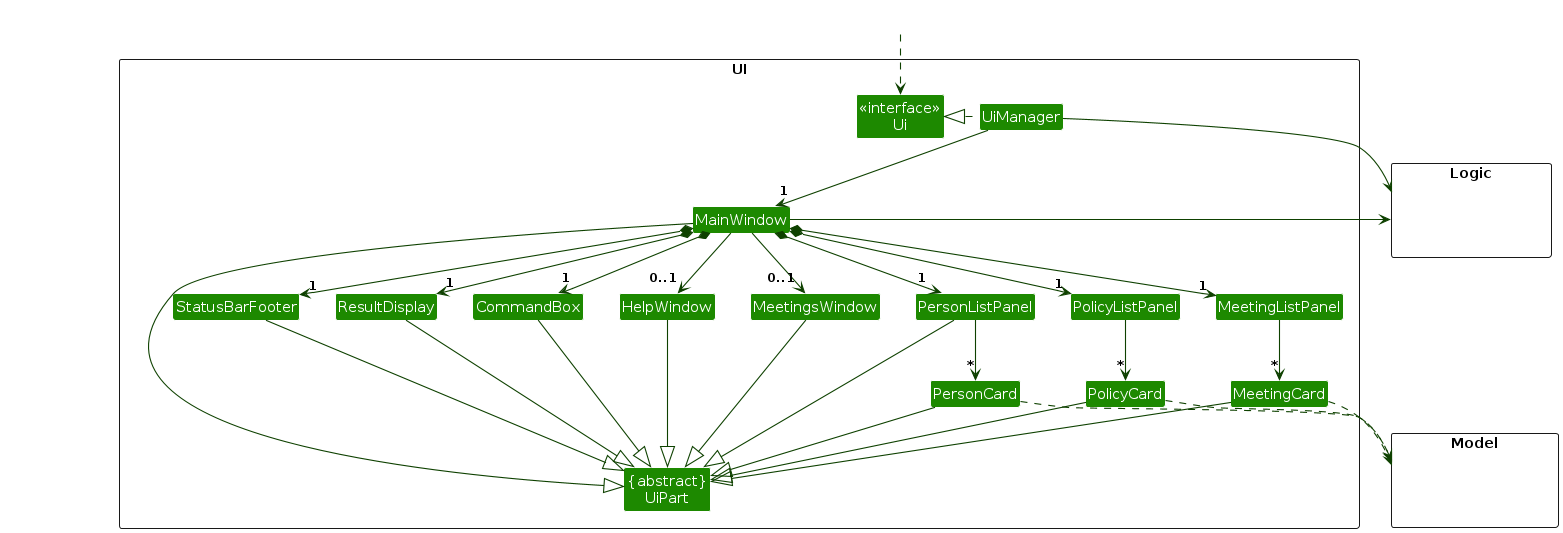
The UI consists of a MainWindow that is made up of parts e.g.CommandBox, ResultDisplay, PersonListPanel, StatusBarFooter etc. All these, including the MainWindow, inherit from the abstract UiPart class which captures the commonalities between classes that represent parts of the visible GUI.
The UI component uses the JavaFx UI framework. The layout of these UI parts are defined in matching .fxml files that are in the src/main/resources/view folder. For example, the layout of the MainWindow is specified in MainWindow.fxml
The UI component,
- executes user commands using the
Logiccomponent. - listens for changes to
Modeldata so that the UI can be updated with the modified data. - keeps a reference to the
Logiccomponent, because theUIrelies on theLogicto execute commands. - depends on some classes in the
Modelcomponent, as it displaysPersonobject residing in theModel.
Logic component
API : Logic.java
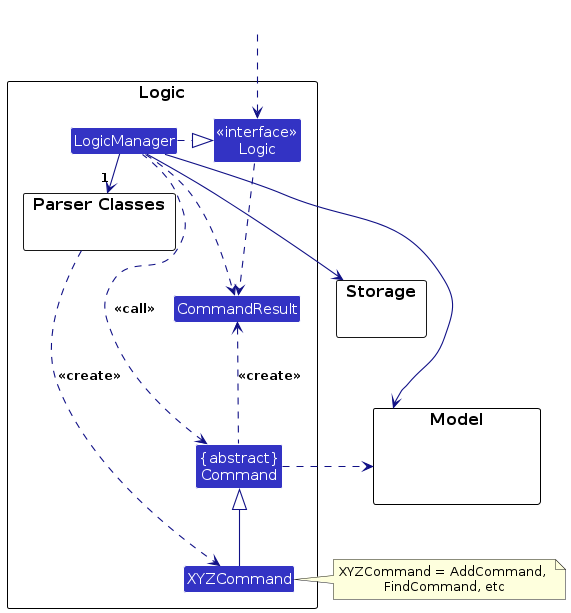
Here's a (partial) class diagram of the Logic component:
The sequence diagram below illustrates the interactions within the Logic component, taking execute("delete 1") API call as an example.
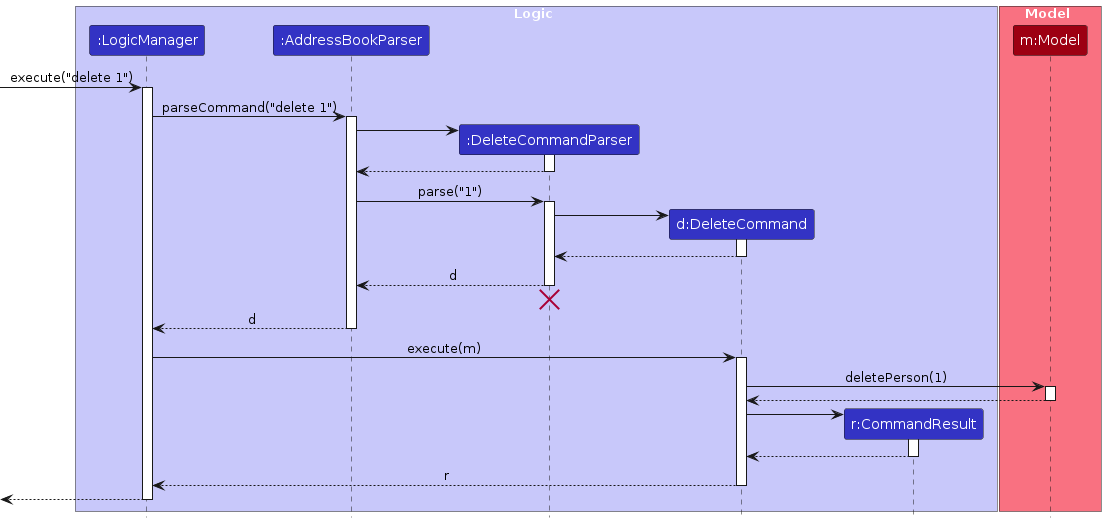
Note: The lifeline for DeleteCommandParser should end at the destroy marker (X) but due to a limitation of PlantUML, the lifeline continues till the end of diagram.
How the Logic component works:
- When
Logicis called upon to execute a command, it is passed to anAddressBookParserobject which in turn creates a parser that matches the command (e.g.,DeleteCommandParser) and uses it to parse the command. - This results in a
Commandobject (more precisely, an object of one of its subclasses e.g.,DeleteCommand) which is executed by theLogicManager. - The command can communicate with the
Modelwhen it is executed (e.g. to delete a person).
Note that although this is shown as a single step in the diagram above (for simplicity), in the code it can take several interactions (between the command object and theModel) to achieve. - The result of the command execution is encapsulated as a
CommandResultobject which is returned back fromLogic.
Here are the other classes in Logic (omitted from the class diagram above) that are used for parsing a user command:
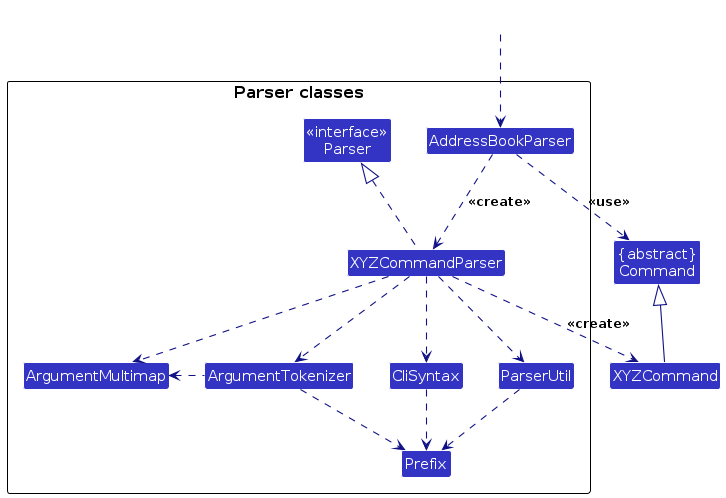
How the parsing works:
- When called upon to parse a user command, the
AddressBookParserclass creates anXYZCommandParser(XYZis a placeholder for the specific command name e.g.,AddCommandParser) which uses the other classes shown above to parse the user command and create aXYZCommandobject (e.g.,AddCommand) which theAddressBookParserreturns back as aCommandobject. - All
XYZCommandParserclasses (e.g.,AddCommandParser,DeleteCommandParser, ...) inherit from theParserinterface so that they can be treated similarly where possible e.g, during testing.
Model component
API : Model.java
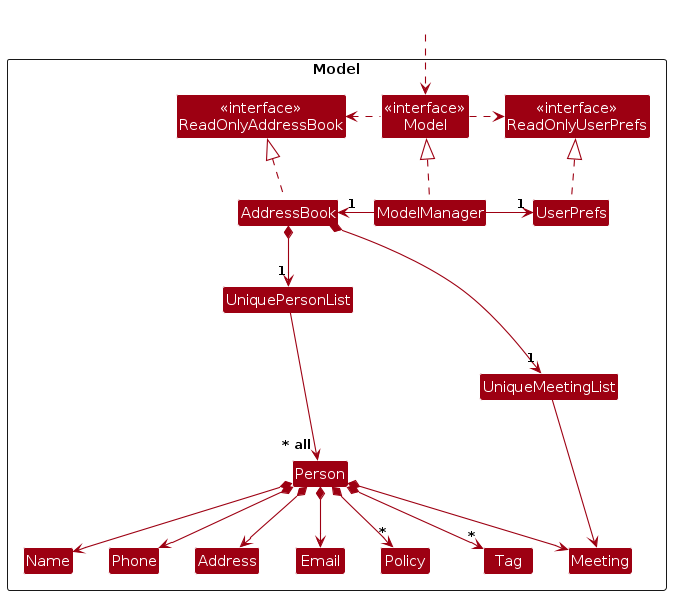
The Model component,
- stores the address book data i.e., all
Personobjects (which are contained in aUniquePersonListobject). - stores the currently 'selected'
Personobjects (e.g., results of a search query) as a separate filtered list which is exposed to outsiders as an unmodifiableObservableList<Person>that can be 'observed' e.g. the UI can be bound to this list so that the UI automatically updates when the data in the list change. - stores a
UserPrefobject that represents the user’s preferences. This is exposed to the outside as aReadOnlyUserPrefobjects. - does not depend on any of the other three components (as the
Modelrepresents data entities of the domain, they should make sense on their own without depending on other components)
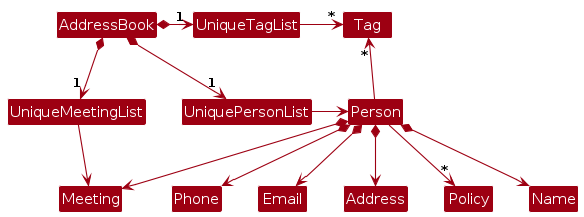
Note: An alternative (arguably, a more OOP) model is given below. It has a Tag list in the AddressBook, which Person references. This allows AddressBook to only require one Tag object per unique tag, instead of each Person needing their own Tag objects.
Storage component
API : Storage.java
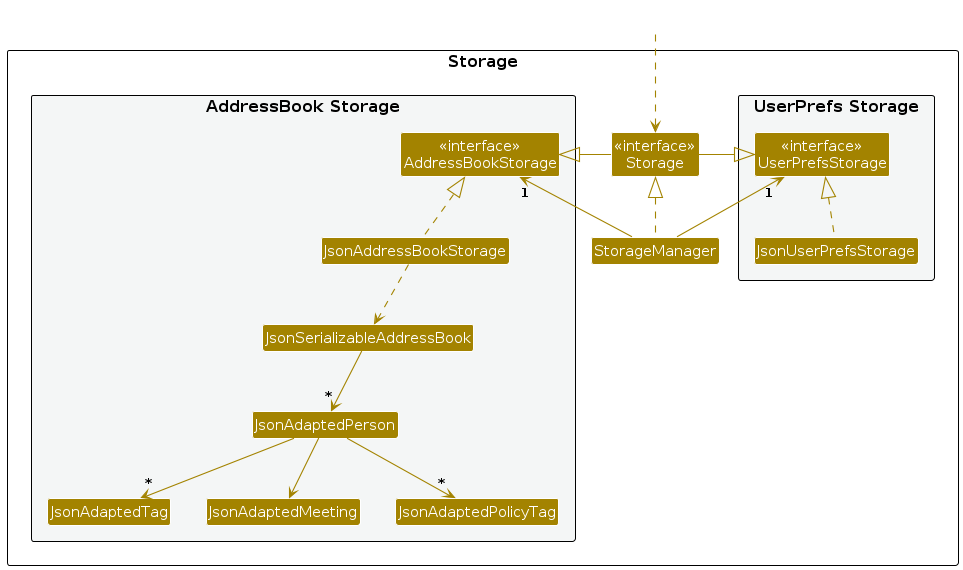
The Storage component,
- can save both address book data and user preference data in JSON format, and read them back into corresponding objects.
- inherits from both
AddressBookStorageandUserPrefStorage, which means it can be treated as either one (if only the functionality of only one is needed). - depends on some classes in the
Modelcomponent (because theStoragecomponent's job is to save/retrieve objects that belong to theModel)
Common classes
Classes used by multiple components are in the seedu.addressbook.commons package.
Implementation
This section describes some noteworthy details on how certain features are implemented.
Add Policy feature
As an insurance agent, each of your clients can have 0 or multiple policies under them as their insurance policies can cover a variety of things such as health, life, car, house, etc. Hence, it is essential that our application keeps track of these policies and their details under the correct client.
Implementation
Essential policy information consists of 6 fields:
- Policy name
- Policy type
- Policy number
- Premium Term
- Premium
- Benefit
Thus, we created a new Policy class that has these fields as required attributes that have to be passed in as arguments
into the constructor.
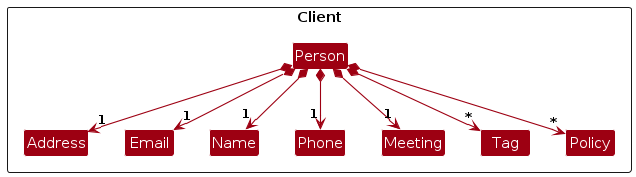
In our Person class (which represents a client in our InsureBook), we have a new attribute called policies which
represents a set of Policy objects tagged to the Person object.
Given below is an example usage scenario and how the add policy mechanism behaves at each step
Step 1. The user launches the application for the first time and adds a new client to the InsureBook with the
add command add n/David .... In this step, a new Person object is created with the attributes name = David phone = 96623786 and so on. policies attribute is initialised to an empty set, representing that a client starts
out with no policies attached to the client
Step 2. This client David decides to take up a new insurance policy with the user. The user then adds a new policy to
David and uses the addPolicy command with David's person index (e.g. 2) addPolicy 2 pol/policyA type/health polnum/987654 pterm/annually prem/123 b/456.
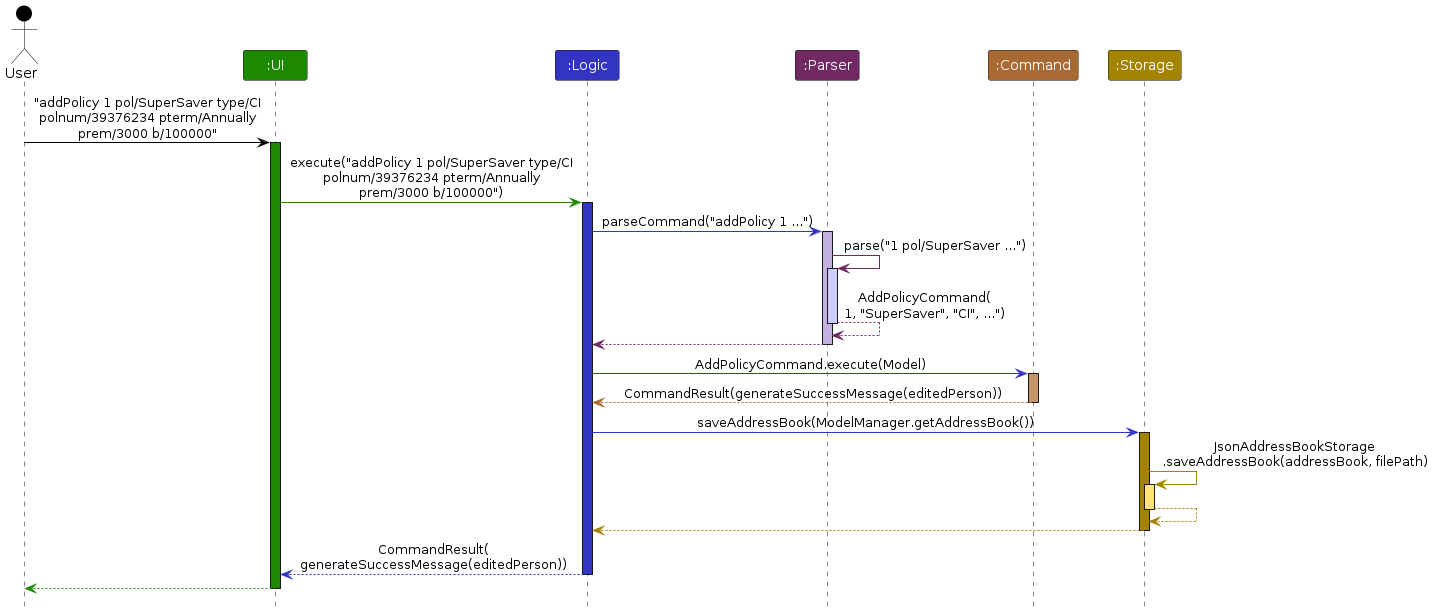
Step 3. Upon entering this command, the LogicManager uses the AddressBookParser to parse the input string and
recognise the addPolicy command word to pass the arguments into the AddPolicyCommandParser where the arguments
are parsed to extract the parameters to create a new AddPolicyCommand object while also checking that the
arguments are valid.
Note: If any of the prefixes are missing or repeated, the application will throw an error to the user and error will be displayed in the command output box.
Note: Premium term (pterm) only accepts a set of values which are case-insensitive.
["SINGLE", "MONTHLY", "QUARTERLY", "SEMI-ANNUALLY", "ANNUALLY"]
Note: Policy number (polnum) cannot already exist in the Peron object's set of Policy objects.
Step 4. A new AddPolicyCommand object is created and returned to LogicManager with an execute command that
finds the Person object (David) with the given person index (2) and retrieves the current set of Policy objects stored
in this Person's policies attribute.
Step 5. With the given arguments, a new Policy object is created with the Policy constructor. This new Policy object
is appended to the Person's previous set of Policy objects.
Step 6. Then a new Person object is created with this new set of Policy objects while keeping the other attributes of
the Person object the same.
Step 7. The new Person object is then passed into Model#setPerson() which edits/updates the Person object (David)
accordingly.
Step 8. Application throws a success message in the command output box to show that a new Policy object was added to the specified client's set of policies. Upon inspecting the specified client's person card, the user will see a new red tag with the inputted policy name.
Design considerations:
Aspect: How store multiple policy information in the same client:
Alternative 1 (current choice): Encompass the policy details into a single Policy class with the details as attributes to the Policy class
- Pros: Good abstraction level to organise all the policy information into one convenient class that can be referenced and have its own methods.
- Cons: Not as straightforward to implement and requires updating multiple classes
Alternative 2: Individual policy details as their own attributes to Person object itself.
- Pros: Easy to implement
- Cons: Weak level of abstraction and code becomes a lot messier and unclear
Add Client feature
Implementation
The add feature allows users to add new clients with the compulsory field Name, Phone, Email, Address, Meeting.
The feature is implemented through the class AddCommand.
A meeting field needs to be in YYYY-MM-DD hh:mm format.
Design considerations:
Aspect: Meeting field
- We made sure that
meetingfield when doingeditoraddis always later than current time so that there is no accidental logging of wrong meeting time.
Aspect: How to store clients
- Alternative 1: Store clients as a separate list from person.
- Pros: Easier to implement new features on it.
- Cons: Harder to implement it.
- Alternative 2 (current choice): Store clients as person in the same list.
- Pros: Easier to implement.
Delete Client feature
Implementation
The delete feature allows users to delete clients with the compulsory field index. Users will be able to delete the client with the specified index, and the corresponding meeting of this person will be deleted in the Meetings section of the UI.
The feature is implemented through the class DeleteCommand.
The index field needs to be in an integer.
Design considerations:
User can delete a client at the specified index.
User should not have to remember the client's original index in the
listview, thus:indexshould be a value present in the current Client view section of the UI.For example, a Client
"John Doe"may haveindex 3in thelistview. However, after using the commandfind John Doe, this Client may haveindex 1now.Use the index of the client in the displayed client list view (e.g.
delete 3inlistview butdelete 1after usingfindorviewcommand).
Both MeetingCard section and PersonCard section will be affected
Delete Policy feature
Implementation
The delete policy mechanism is facilitated by DeletePolicyCommand. It extends Command which is an abstract class with only 1 method, Command#execute(Model model).
Additionally, it implements DeletePolicyCommand#generateSuccessMessage(Person editedPerson).
Further descriptions on the methods:
DeletePolicyCommand#execute(Model model)— Executes the delete policy command and removes the policy with the input policy number that is linked to the input client.DeletePolicyCommand#generateSuccessMessage(Person editedPerson)— Generates and prints the success message when a policy is successfully deleted from the specified client.
Design Considerations:
Aspect: Index and Policy Number field
- We made sure that either
Indexfield orPolicy Numberfield cannot be empty, if not, an exception will be raised to alert the user that some fields are insufficient/invalid.
View Client feature
Implementation
The view feature allows users to view clients with the compulsory field index. Users will be able to see all information about the specified client, including the policies held by the client and these policies' details.
The feature is implemented through the class ViewCommand.
The index field needs to be in an integer.
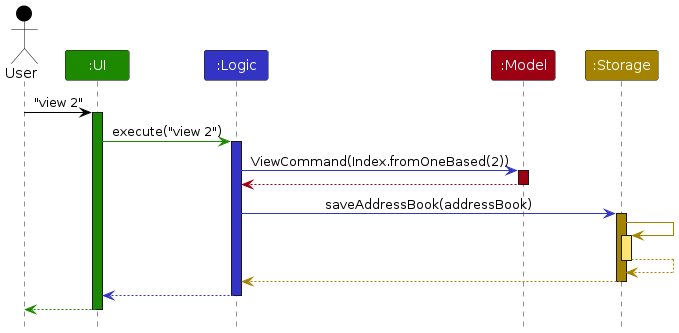
Design considerations:
- User can view a client at the specified index.
- User can see a list-view of policies that this client is covered by.
- MeetingCard section of UI should not be affected by this command.
View Meetings For This Week feature
Implementation
The 'meetings' command allows users to view all the meetings that are scheduled in the current week. The feature is implemented through the MeetingsCommand class.
The UI component for this command is the MeetingsWindow, which is a pop-up window displaying the meetings for the current week.
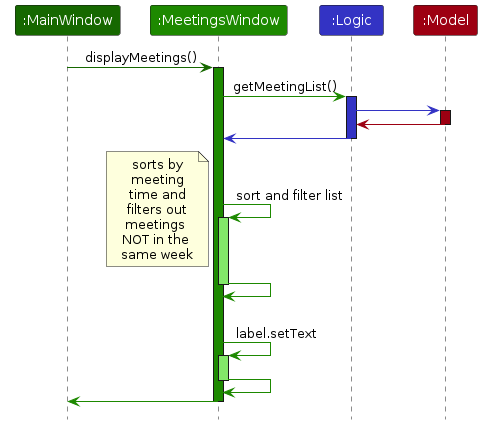
Design considerations:
- User can view all meetings scheduled for the current week, in chronological order. This allows the user to efficiently identify the meetings that are coming up soon.
- The meetings should be displayed along with the client's name, so that users can identify the client they are meeting and the time of the meeting.
- Designed as a pop-up window to allow users to view the meetings without cluttering the main window. Users can also check details in the main window while viewing the meetings.
- User must be able to close the window using a keyboard, to maintain the keyboard-centric design and speed advantage of the CLI app.
Planned enhancements
These are some proposed features that can be implemented in the future.
Adding a policy displays it in the Policies panel
- A possible implementation: Modify CommandResult to have an
isAddPolicy()method. In the MainWindow class, modifyexecuteCommand- if the command result isAddPolicy, display the newly added policy in the PolicyListPanel. - This feature would allow users to easily check the details of the newly added policy, without having to look through the user feedback box.
Delete policies using the policy's index in Policies panel
- This feature would allow users to easily delete policies, without having to type out the whole policy number.
Improving allowed inputs
- Change the allowed inputs for certain fields so that they make logical sense.
- Improve allowed inputs for phone number (ensure it is 8 digits long and starts with 6, 8 or 9)
- Improve allowed input for phone number and email fields (ensure that these fields are unique across clients)
Fixing text that gets cut off in UI
- Right now, long input fields may cause text to be cut off in the UI, e.g. a long client name might get cut off in the UI with
... - This can be fixed by either:
- limiting the number of characters allowed in the name. This is not ideal as certain clients may in fact have very long names, and we should allow these names too.
- fixing UI such that text out of boundaries are wrapped. This is the better solution.
Improve validity checks for inputs
- Ensure that error messages that are shown are consistent throughout all commands.
- Ensure that all types of invalid index inputs raise the same error.
Improve UI layout
- Tweak the UI such that all client details are displayed in the UI with the
viewcommand, regardless of the window size of the application.
Documentation, logging, testing, configuration, dev-ops
Appendix A: Requirements
Product scope
Target user profile: An insurance agent who
- has a need to manage a significant number of clients and keep track of each client's policies
- has a need for an all-in-one application to schedule his appointments and remind him of upcoming meetings
- prefer desktop apps over other types
- can type fast
- prefers typing to mouse interactions
- is reasonably comfortable using CLI apps
Value proposition: InsureBook is an all-in-one application designed to allow Insurance Agents to keep track of their client's personal information and policies. Our application also allows Insurance Agents to schedule meetings with clients. With our application, Insurance Agents can centralise their workflows and achieve increased work efficiency.
User stories
Priorities: High (must have) - * * *, Medium (nice to have) - * *, Low (unlikely to have) - *
| Priority | As a … | I can … | So that I can… |
|---|---|---|---|
* * * | insurance agent | add clients details into the address book | keep track of my clients |
* * * | insurance agent | delete clients details in the address book | remove previous clients |
* * * | insurance agent | edit details of the client | update clients detail |
* * * | insurance agent | search for details | find client's information |
* * * | insurance agent | add clients insurances and policies | keep track of my clients policies and insurances |
* * | new insurance agent | view all commands | figure out how to use the application |
* * * | insurance agent | delete clients insurances and policies | remove client's previous policies |
* * | insurance agent | search for clients with specified policies | keep track of who has the specified policies which may have an update |
* * * | forgetful insurance agent | add meeting date/time | organise my day and meeting time with the client |
* * | organised insurance agent | view all my meetings in the dashboard | see all my meetings with my clients |
* * * | organised insurance agent | view upcoming meetings for the week | prepare for my upcoming meetings with clients |
Use cases
(For all use cases below, the System is InsureBook and the Actor is the user, unless specified otherwise)
Use case: UC01 - View help
MSS
User requests to see the help.
InsureBook opens up the help window, displaying the command summary.
Use case ends.
Use case: UC02 - Add a client
MSS
User requests to add a new client.
InsureBook adds the new client to the list.
Use case ends.
Extensions
1a. The provided field(s) is/are invalid.
1a1. InsureBook shows an error message.
Use case resumes from step 1.
1b. Compulsory field(s) is/are missing.
1b1. InsureBook shows an error message.
Use case resumes from step 1.
Use case: UC03 - List all clients
MSS
User requests to show all clients in the list.
InsureBook shows all clients in the list.
Use case ends.
Use case: UC04 - Edit a client
MSS
User requests to list all clients(UC03).
InsureBook displays the list of clients.
User requests to edit the fields of a specific client in the list.
InsureBook edits the fields of the client.
Use case ends.
Extensions
1a. The list is empty.
Use case ends.
3a. The given index is invalid.
3a1. InsureBook shows an error message.
Use case resumes at step 3.
3b. The new field value(s) is/are invalid.
3b1. InsureBook shows an error message.
Use case resumes at step 3.
3c. No fields to edit are provided.
3c1. InsureBook shows an error message.
Use case resumes at step 3.
Use case: UC05 - View a client
MSS
User requests to list all clients (UC03).
User requests to view a specific client in the list.
InsureBook shows the client's details and each of their policy's full details.
Use case ends.
Extensions
1a. The list of client is empty.
Use case ends.
2a. The given index is invalid.
2a1. InsureBook shows an error message.
Use case resumes at step 2.
Use case: UC06 - Find a client
MSS
User requests to find all clients with names matching the input keyword(s).
InsureBook shows all clients with matching names.
Use case ends.
Extensions
1a. No keywords are provided.
1a1. InsureBook shows an error message.
Use case resumes from step 1.
Use case: UC07 - Add a policy
MSS
User requests to list all clients (UC03).
User uses the addPolicy command to add a specific policy to a client with a specified index with parameters Policy name, Policy type, Policy number, Premium Term, Premium, Benefit
InsureBook successfully adds the said policy to the person at the specified index
Use case ends.
Extensions
1a. The list of client is empty.
Use case ends.
2a. The given index is invalid.
2a1. InsureBook shows an error message.
Use case resumes from step 2.
Use case: UC08 - Delete a policy
MSS
User requests to list all clients (UC03).
User requests to delete a specific policy (identified by unique policy number) from a Client at a specified index
InsureBook successfully removes the policy from the Client at the specified index.
Use case ends.
Extensions
1a. The list of client is empty.
Use case ends.
2a. The given index is invalid.
2a1. InsureBook shows an error message.
Use case resumes from step 2.
3a. The given policy number is invalid or does not exist
3a1. InsureBook shows an error message.
Use case resumes from step 2.
Use case: UC09 - Find a policy
MSS
User requests to list all clients (UC03).
User requests to Find all users with a specific policy, using a chosen keyword.
InsureBook successfully lists all users with the Policy containing the keyword in its name in the Clients section of UI
Use case ends.
Extensions
1a. The list of client is empty.
Use case ends.
2a. The given keyword is invalid.
2a1. InsureBook shows an error message.
Use case resumes from step 2.
Use case: UC10 - Delete a client
MSS
User requests to list all clients (UC03).
User requests to delete a specific client in the list.
InsureBook deletes the clients.
Use case ends.
Extensions
1a. The list of client is empty.
Use case ends.
2a. The given index is invalid.
2a1. InsureBook shows an error message.
Use case resumes at step 2.
Use case: UC11 - View upcoming meetings for the present week
MSS
- User uses the meetings command to view upcoming meetings.
- InsureBook creates the popup showing all the upcoming meetings for the coming week, sorted in chronological order.
Extensions
1a. There is no upcoming meetings for the week.
Use case ends.
Use case: UC12 - Clear all entries
MSS
User requests to clear all entries.
InsureBook asks for confirmation to clear all entries.
User confirms to clear all entries.
InsureBook clears all entries.
Use case ends.
Extensions
2a. Confirmation is not given.
2a1. InsureBook cancels the clear action.
Use case ends.
Use case UC13: Exit program
MSS
User requests to exit the program.
InsureBook exits.
Use case ends.
Non-Functional Requirements
- Should work on any mainstream OS as long as it has Java
11or above installed. - Should be able to hold up to 1000 persons without a noticeable sluggishness in performance for typical usage.
- A user with above average typing speed for regular English text (i.e. not code, not system admin commands) should be able to accomplish most of the tasks faster using commands than using the mouse.
- Should work without internet connection.
- For any command, the system should respond within 2 seconds.
- Should provide comprehensive documentation for users to learn how to use the command-line interface effectively.
- Should provide clear and user-friendly error messages, guiding users on how to rectify issues.
Glossary
- Mainstream OS: Windows, Linux, Unix, MacOS
- Private contact detail: A contact detail that is not meant to be shared with others
- CLI: Command Line Interface
- GUI: Graphical User Interface
Appendix B: Instructions for manual testing
Given below are instructions to test the app manually.
Note: These instructions only provide a starting point for testers to work on;
testers are expected to do more exploratory testing.
Launch and shutdown
Initial launch
Download the JAR file and copy into an empty folder. See the Quick Start section in the User Guide for the link to download the JAR file.
Double-click the jar file Expected: Shows the GUI with a set of sample contacts. The window size may not be optimum.
Saving window preferences
Resize the window to an optimum size. Move the window to a different location. Close the window.
Re-launch the app by double-clicking the jar file.
Expected: The most recent window size and location is retained.
Exiting the Application (Shutdown)
- Type in "Exit" in the main command bar of the InsureBook.
- Else, manually close the Application
Deleting a client
Deleting a client while all clients are being shown
Prerequisites: List all clients using the
listcommand. Multiple clients in the list.Test case:
delete 1
Expected: First client's contact is deleted from the list. Details of the deleted contact shown in the status message. Timestamp in the status bar is updated.Test case:
delete 0Expected: No client is deleted. Error details shown in the status message. Status bar remains the same.
Other incorrect delete commands to try:
delete,delete x,...(where x is larger than the list size)
Expected: Similar to previous.
Deleting a client from an empty InsureBook
Prerequisites: List all clients using the
listcommand. The list should be empty.Test case:
delete xExpected: An Error should pop up and Error details will be shown in the status message. Shows that the storage is functioning properly.
Saving data
Dealing with missing/corrupted data files
Stimulating a corrupted/missing data file
- Close the application if it's running.
- Navigate to the file containing the data of the InsureBook which is located in
/data/addressbook.json - Delete or rename this json file and this will corrupt it
- Exit and relaunch the application
Expected: The application should detect that the data file is missing and the whole InsureBook would be empty, and the commands will still be working in the empty InsureBook without any crashes. This ensures that the application can still be used even if the data file gets deleted.